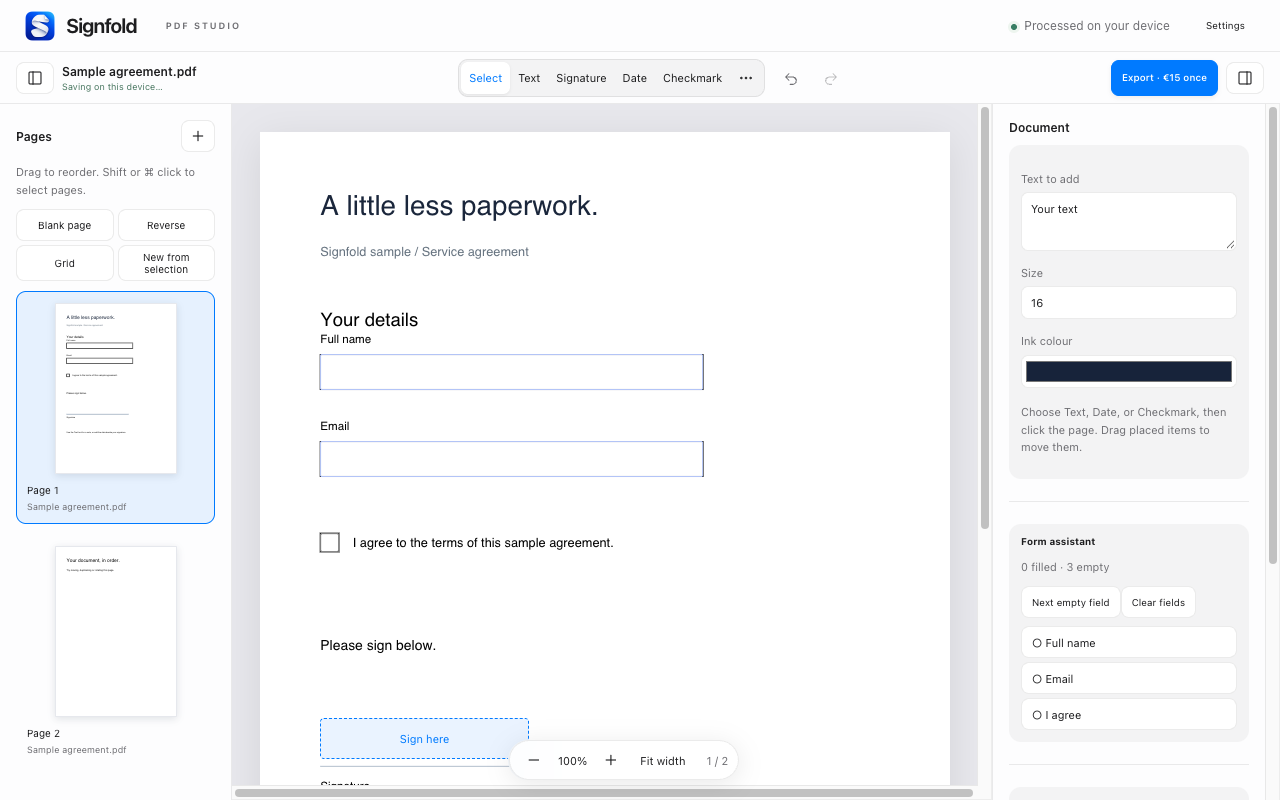
1. Fill the fields that are already there
Open your PDF and click an interactive field to enter a value or tick a checkbox. For supported forms, the Form assistant shows filled and empty counts and helps you move to the next empty field.
A scanned page may look like a form without containing any interactive fields. Use Text to place a new text annotation over the appropriate line. Local OCR is available as a separate quick tool to make scans searchable. Existing paragraphs cannot be edited in place.
2. Choose your signature
Choose Signature in the toolbar. Draw a signature, type one or upload an image. Place it on the page, then select it to move or resize it. You can keep reusable signatures on this device.
Add a date, initials or checkmark with the corresponding tools. Zoom in when positioning a small annotation, then check the result at a normal reading size. Undo and redo let you correct a misplaced item.
3. Review the whole document
Check every required field and page. A visible signature is not a certificate-based digital signature. Editing an already certificate-signed PDF can invalidate its existing signatures; keep the original if you need its signature evidence.
Whiteout only covers content visually. It does not securely remove the underlying text or images. Use an appropriate redaction tool before sharing a document that contains information you need to remove.
4. Export and inspect
Export requires Signfold Pro (€15 once for up to three devices, including applicable tax). Choose a flattened PDF for a finished copy, or keep supported form fields editable if the next person needs them. Reopen the saved PDF to check your changes.
Working on a shared computer
Saved drafts and signatures are encrypted in the browser profile, but anyone using that unlocked profile can open them. Turn off autosave or clear local data in Settings when appropriate. The interface supports 54 locales. Check your exported document for correct text and font rendering.