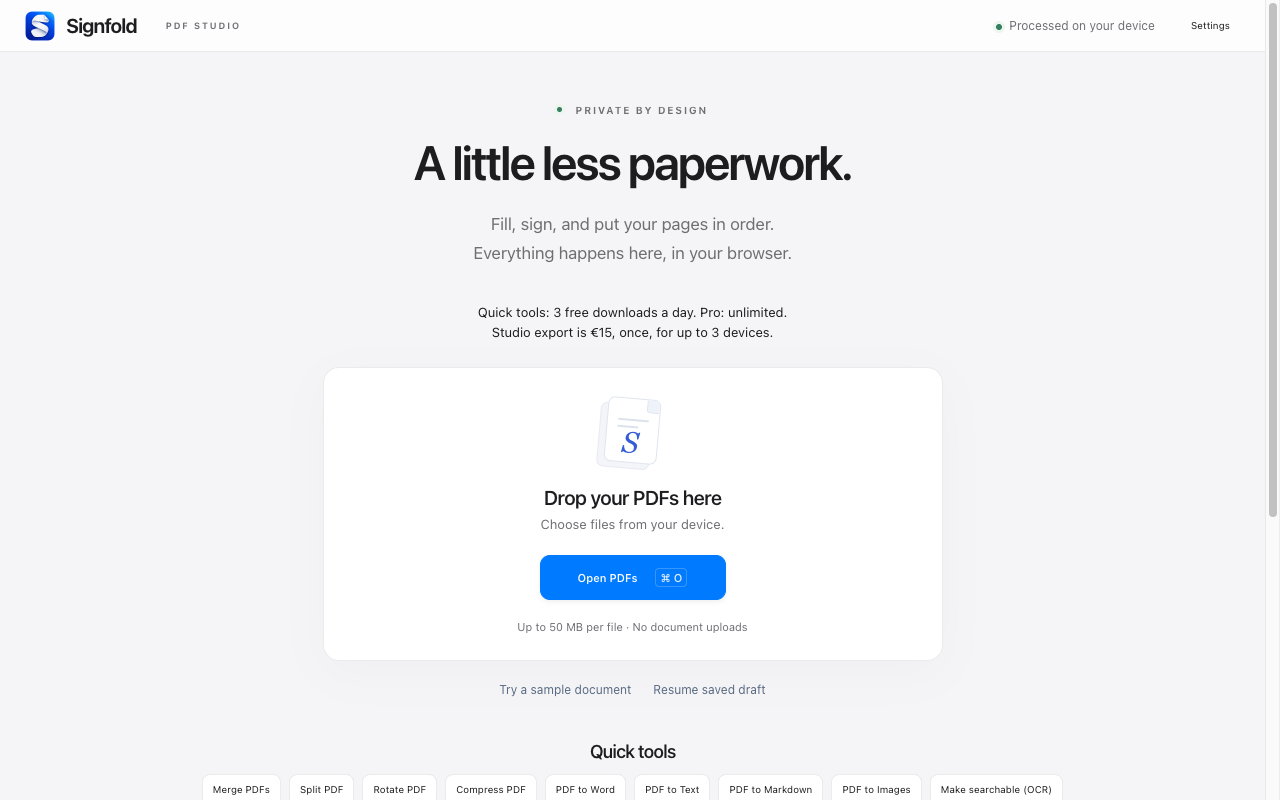
1. Install and open Signfold
Open the Chrome Web Store listing in Chrome and choose Add to Chrome. After installing, open Chrome’s Extensions menu and select Signfold. You can pin it for easier access.
2. Start with a file or a sample
Choose Open PDFs and select a file from your computer, or drop one or more PDFs onto the start screen. To explore without using your own documents, choose Try a sample document.
Each PDF can be up to 50 MB. A session supports 100 MB of source files and up to 300 pages. If a PDF is password-protected, save an unlocked copy first.
3. Make your changes
Click a supported form field to fill it. For a page without form fields, use the Text tool to place new text. Choose Signature to draw, type or upload a visible signature, then click where it belongs. Use the page thumbnails to arrange the document.
4. Save the final PDF with Pro
Opening, filling, signing and organizing are free. Export requires Signfold Pro: €15 once, including applicable tax, for up to three devices. Choose Export to see the purchase or export options. Checkout happens through Stripe Managed Payments inside the extension.
Your key arrives in a separate Signfold email. If needed, paste it into Settings → Signfold Pro. You can find your licence again with your purchase email.
5. Check your saved copy
Open the exported PDF and check the page order, completed fields and signature placement before sharing it. Your working documents are processed on your device. Optional local drafts belong to this browser profile, so keep the exported file somewhere you can find it.