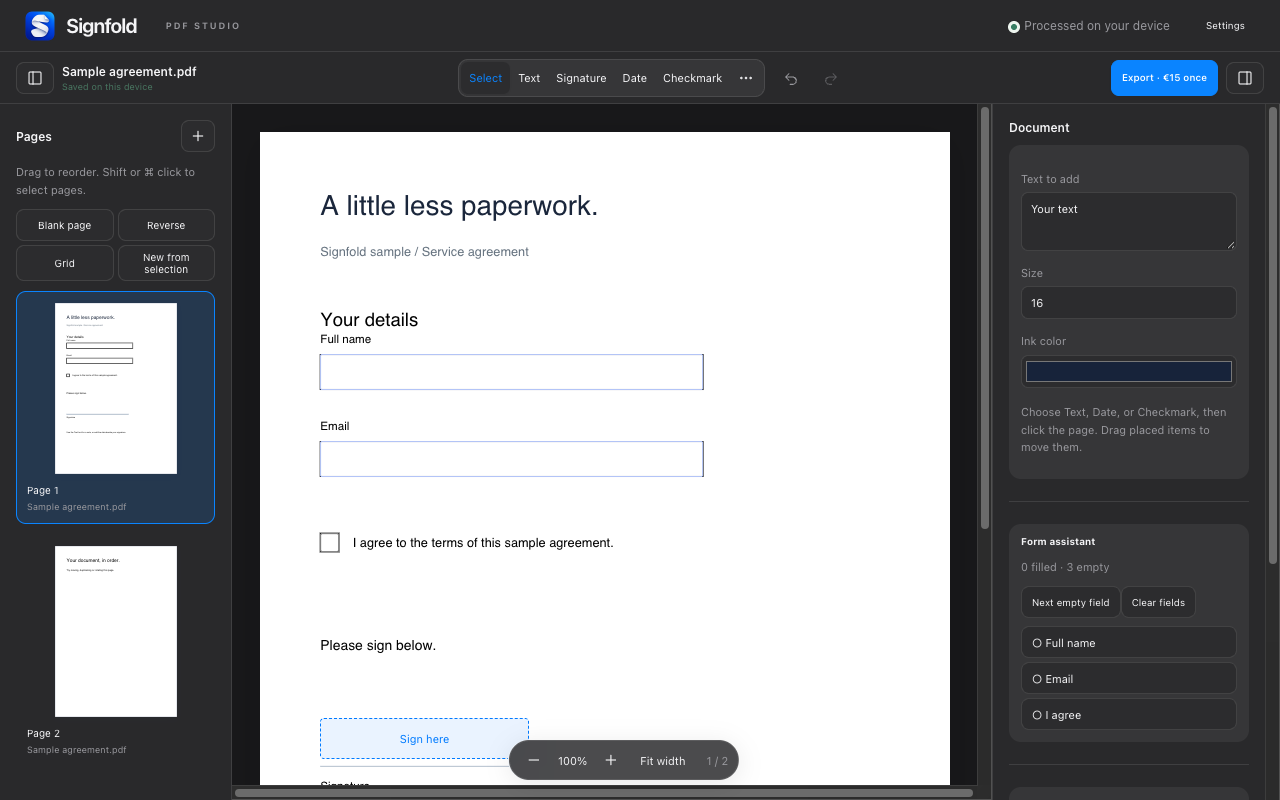
1. Bring your files into one workspace
Open one or more PDFs from your computer or drop them into Signfold. Use the page thumbnails to see the pages you’re working with. The editor supports up to 50 MB per PDF, 100 MB of source data in a session and 300 pages.
2. Select and arrange pages
Drag thumbnails into the order you want. Use Shift or Command on Mac (Control on Windows) while selecting to work with multiple pages. Page tools let you rotate, duplicate, delete or reverse pages, and insert a blank page.
To separate part of a document, select its pages and choose New from selection. Review the resulting document before removing anything from the original. Keep an untouched source copy if you may need to return to it.
3. Choose the output
Choose Export, then all pages or a page range. A flattened PDF is a finished copy with the annotations applied. The editable form option keeps supported form fields editable. It does not make every element of the original PDF editable.
Export needs Signfold Pro: €15 once, including applicable tax, for up to three devices. There is no subscription. After an online license check, Pro supports up to 14 days offline before it needs to connect again.
4. Review metadata and private information
The export option to clear metadata removes title, author and subject. It does not remove hidden content or attachments. Whiteout is a visual cover, not secure redaction. Check the source document for information that should not be shared.
5. Check the exported file
Open the saved PDF outside the editor. Confirm the page count, order, rotation, annotations and form behavior. If you exported a range, check that it contains the intended pages. Keep the original source PDFs until you’re satisfied with the result.